.png?width=200&height=105&name=Newsletter%20Images%20(27).png)
Archived Locks
Locks marked as Lost, Damaged, Sold, or Unscannable are moved to Archived Locks because they are no longer active for regular facility use. A lock with one of these statuses may appear to be missing when an operator searches under Manage Locks.
Archived locks do not appear under Locks > Manage Locks, regardless of the user’s role. They also do not appear in the regular lock views in the mobile app.
Why Is the Lock Missing from Manage Locks?
Archived locks never appear under Locks > Manage Locks.
If a lock cannot be found there:
- Search for its serial code using Quick Search.
- Review the status displayed in the search result.
- If the lock has an archived status, contact an Owner or Admin if its status needs to be changed.
Owners and Admins can also locate the lock from Locks > Archived Locks.
Find an Archived Lock with Quick Search
All users can search for an archived lock by serial code using Quick Search.
- Sign in to the DaVinci Lock® web portal.
- Go to the Dashboard.
- Enter the lock’s serial code in Quick Search.
- Review the status shown in the search result.
The options available from the search result depend on the user’s role.

Personnel Users
Personnel users can see the lock and its current status in the Quick Search results. This allows them to determine whether the lock was marked Lost, Damaged, Sold, or Unscannable.
Personnel users are not able to view the Archived Locks tab or select View Details. If the lock needs to be returned to use, the Personnel user must contact an Owner or Admin within their company and provide the lock’s serial code.
Owners and Admins
Owners and Admins can see the lock’s status and select View Details from the Quick Search result.
From the Lock Details screen, they can review the lock and change it to the appropriate status when it should be returned to regular use.
View the Archived Locks Tab
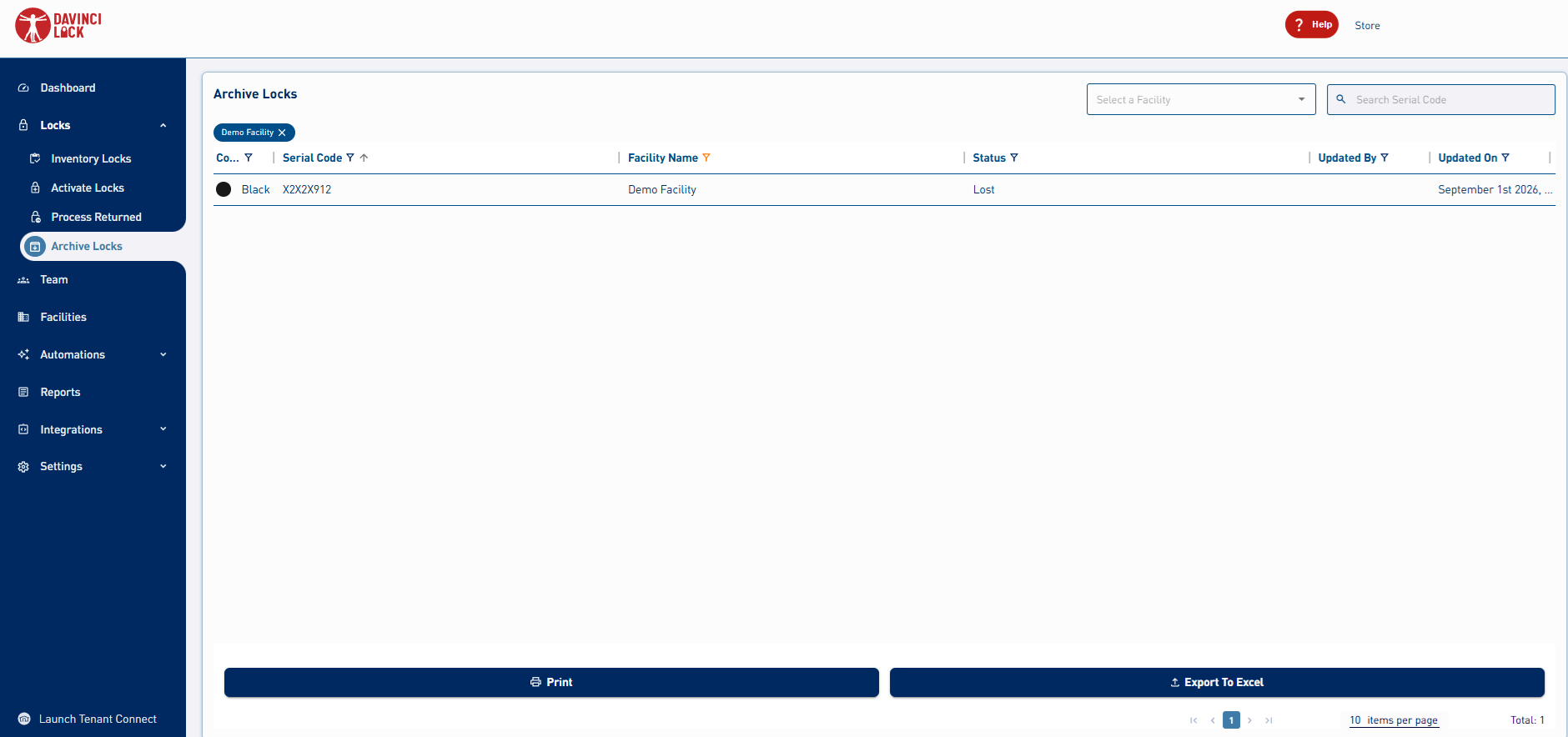
Only Owners and Admins can access the Archived Locks tab.
To search Archived Locks:
- Sign in to the DaVinci Lock web portal.
- Select Locks.
- Open the Archived Locks tab.
- Search for the lock using its serial code.
- Select the lock to review its details.
Personnel users cannot see the Archived Locks tab.
Return an Archived Lock to Regular Use
Only an Owner or Admin can move a lock out of Archived Locks.
An Owner or Admin can access the lock in either of these ways:
- Find the lock with Quick Search and select View Details.
- Open Locks > Archived Locks and search for the lock.
- Change the lock to the appropriate active status.
After the status is updated, the lock is removed from Archived Locks and becomes available in the applicable regular lock view.