.png?width=200&height=105&name=Newsletter%20Images%20(27).png)
Change Your Time Zone Display
The DaVinci Lock Portal displays dates and times according to the time zone selected in your user profile (The default is UTC).
Your selected time zone affects the times shown in:
- Reports
- The Locks tab
- Lock Logs
Time zone preferences are saved separately for each user. Changing your preference will not change the time zone displayed for other users at your company.
Update Your Time Zone
1. Sign in to the DaVinci Lock Portal.2. Select your user profile in the upper-right corner of the portal.
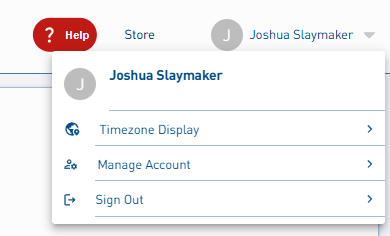
4. Choose how the portal should determine your time zone:
-
- Toggle on Use your current location to use the time zone associated with your current location.

-
- Turn Use your current location off to select a time zone manually.
- Select your preferred time zone from the list.
- Turn Use your current location off to select a time zone manually.
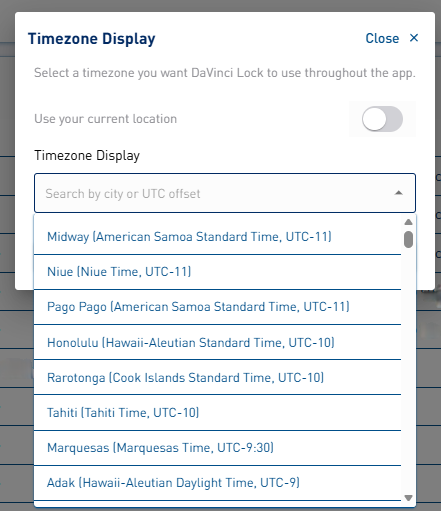
5. Select Update Timezone to save your changes.

The Reports, Locks tab, and Lock Logs will now display dates and times using your selected time zone.