To connect your DaVinci Lock® facility to DoorSwap:
DoorSwap works using a two-way connection. There is no support for overlockrelease.com as payment and tenant notification is handled via DoorSwap.
- Sign in to your DaVinci Lock® account.
-
Before integrating an existing facility, add a payment method and review your invoice groups. Integrated facilities are automatically assigned to the Default invoice group unless you choose to assign them to a different group. Please note that starting the integration will enroll the facility in a subscription.
You can review the Subscription FAQs for additional billing information. - Create a DaVinci Lock API Key that can access one or more of your facilities. You will need to provide this information to DoorSwap.
- Call or email DoorSwap customer support:
-
- Request the Facility ID and credentials for each facility you want to connect.
- You will need to provide them with the API Key, API Secret, and facility ID from the DaVinci Lock® portal.
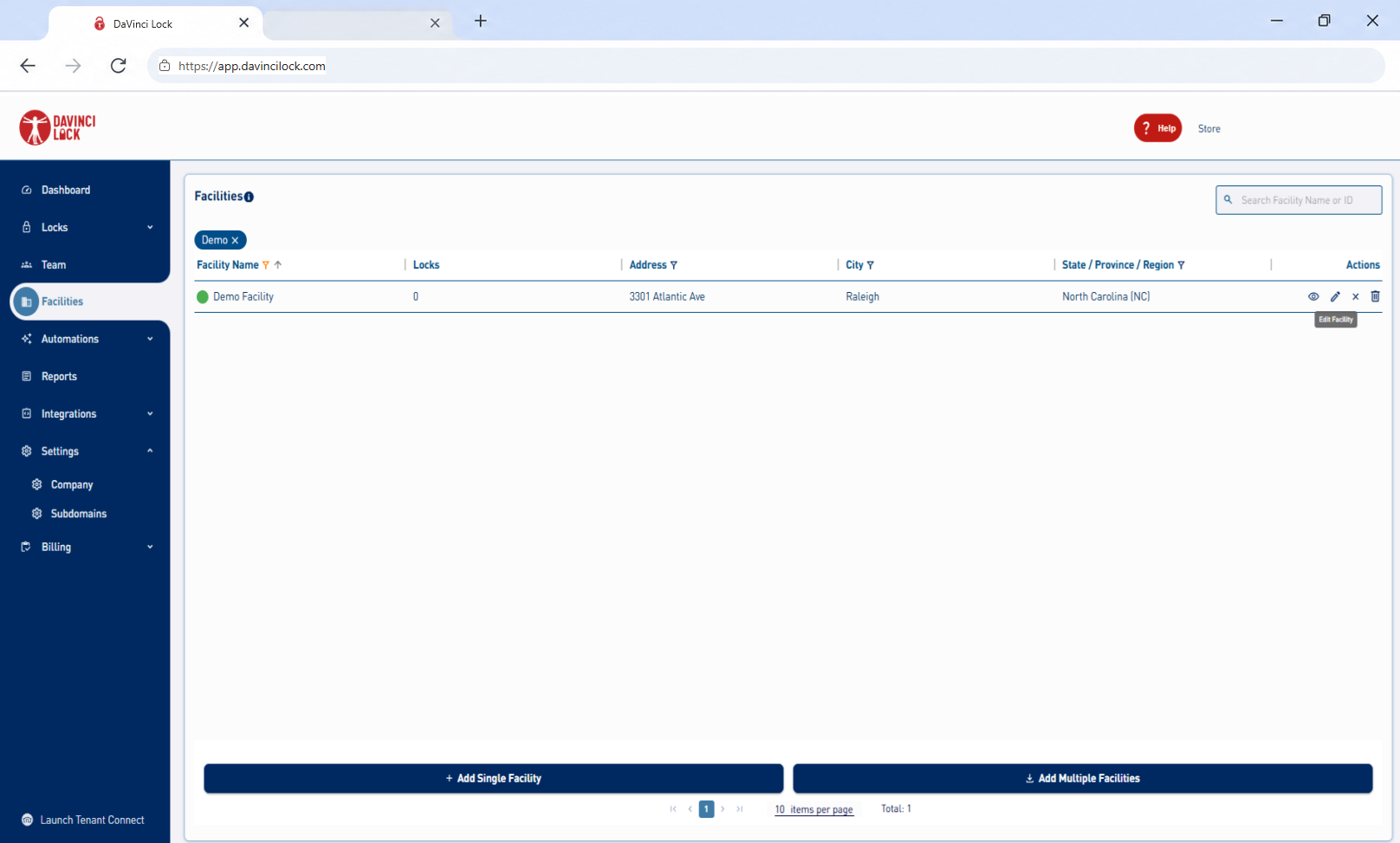
5. On the DaVinci Lock® desktop portal, click “Facilities” and add a facility or locate the facility to be updated. Select Edit Facility (pencil icon) on the far-right side of the facility row. Selecting the facility name does not open the facility editor.
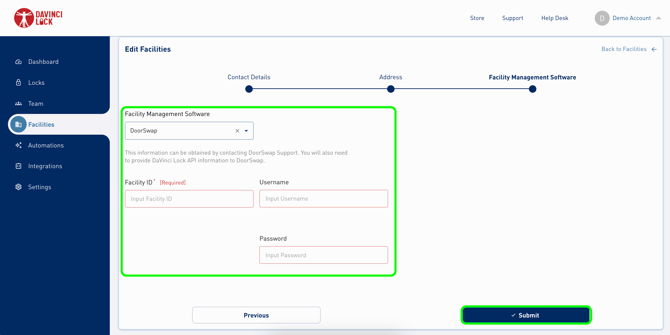
6. Select "DoorSwap" as the facility management software and add the “Facility ID”, “Username”, and “Password” provided by DoorSwap.
7. Click “Submit” to save.
-
- If successful, you will receive a notification stating “Facility successfully updated”.
- If unsuccessful, you will receive a notification stating “Facility successfully updated. However, the entered DoorSwap Facility ID could not be resolved”. If this happens, double-check the Facility ID, username, and password were entered correctly. If it was, you will need to reach out to DoorSwap for support.
 Congratulations! DaVinci Lock® is now connected to DoorSwap.