.png?width=200&height=105&name=Newsletter%20Images%20(27).png)
To connect your DaVinci Lock® facility to Monument:
- Email info@davincilock.com to enroll in a subscription tier.
- Call or email Monument customer support (integrationsupport@monument.io):
- Request the Facility ID for each facility you want to connect.
- Request the facility API Keys for each facility you want to connect.
- Request the Base URL for each facility you want to connect.
- Sign in to your DaVinci Lock® account.
- Click “Facilities” and add a facility or locate the facility to be updated.
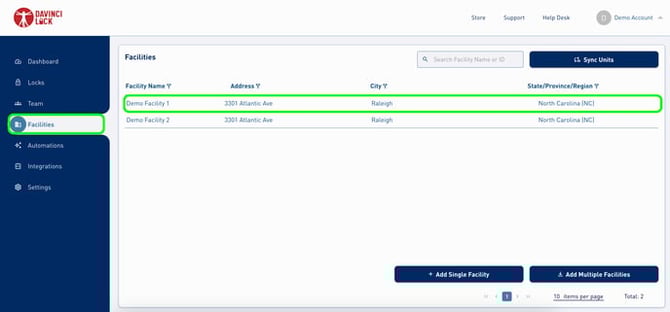
5. Select "Monument" as the facility management software and add the Facility ID, API Key, and Base URL from Monument.
6. Click “Submit” to save.
-
- If successful, you will receive a notification stating “Facility successfully updated”.
- If unsuccessful, you will receive a notification stating “Facility successfully updated. However, the entered Monument Facility ID could not be resolved.”. If this happens, double check the Facility API Key was entered correctly. If it was, you will need to reach out to Monument support to confirm that the DaVinci Lock® Integration was turned on correctly.
7. Click "Automations" and confirm all of the toggle switches are turned off and to the left. If these are toggled on the tenants will receive duplicate messages.
8. Click "Settings" and confirm the "Hide All Lock Codes" is turned off. If this is turned on then the codes will appear masked as ****.
Congratulations! DaVinci Lock® is now connected to Monument.