.png?width=200&height=105&name=Newsletter%20Images%20(27).png)
To connect your DaVinci Lock® facility to Storable Edge:
- Sign in to your DaVinci Lock® account.
-
Before integrating an existing facility, add a payment method and review your invoice groups. Integrated facilities are automatically assigned to the Default invoice group unless you choose to assign them to a different group. Please note that starting the integration will enroll the facility in a subscription.
You can review the Subscription FAQs for additional billing information. - Sign in to Storable Edge at https://www.storedgefms.com with your credentials.
- Click “Corporate” in the top right corner, then click the “Settings” icon.


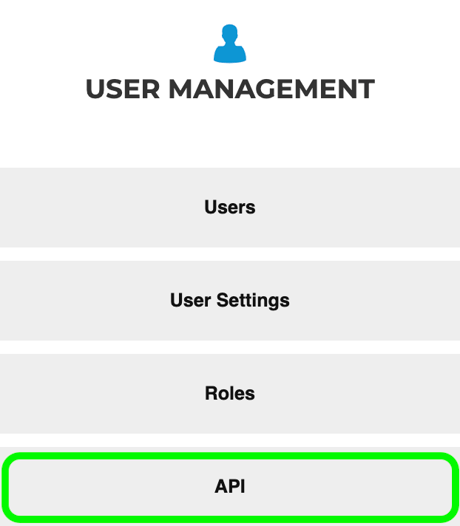
- In "User Management" click “API”.
- Search "Keyless Lock Management - DaVinci Locks" and toggle the setting on. If you have any issues with this setting, contact Storable Edge support for assistance with enabling it.

- Click the blue text "Keyless Lock Management - DaVinci Locks" to open the API settings. Check the boxes as listed below (you may see additional boxes in Storable Edge that are not required to be checked):
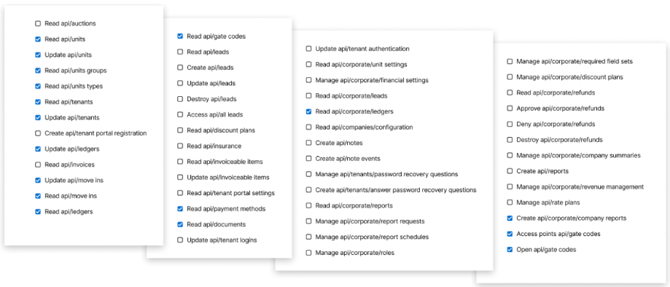
-
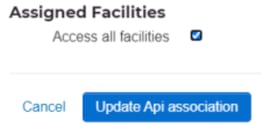
- Ensure that "Access All Facilities" is checked or that the specific facilities you want to enable are checked. If specific facilities are checked and you add a new facility to your account, you will have to manually add that facility to the API association. Press "Update Api association" to save your changes.
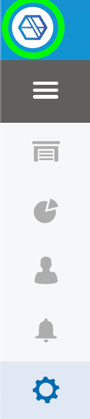
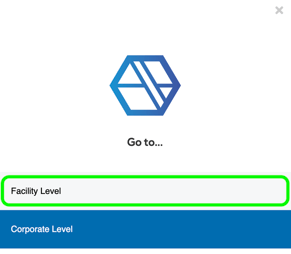
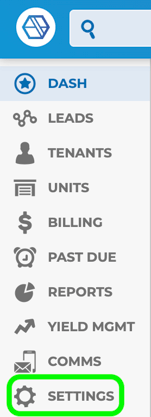
7. Click the Storable Edge icon in the top left corner, navigate to "Facility Level" > "Settings"
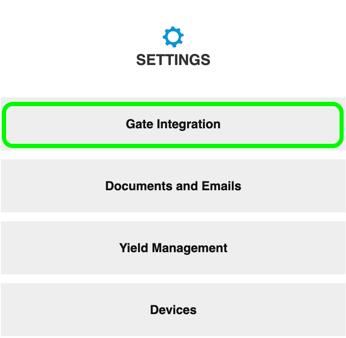
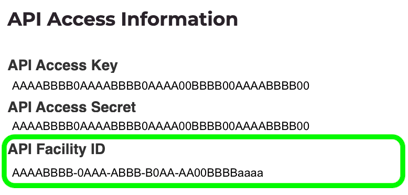
8. In "Settings" click "Gate integration". Copy the facility ID for the facility you want to connect.
9. Sign in to your DaVinci Lock® account.
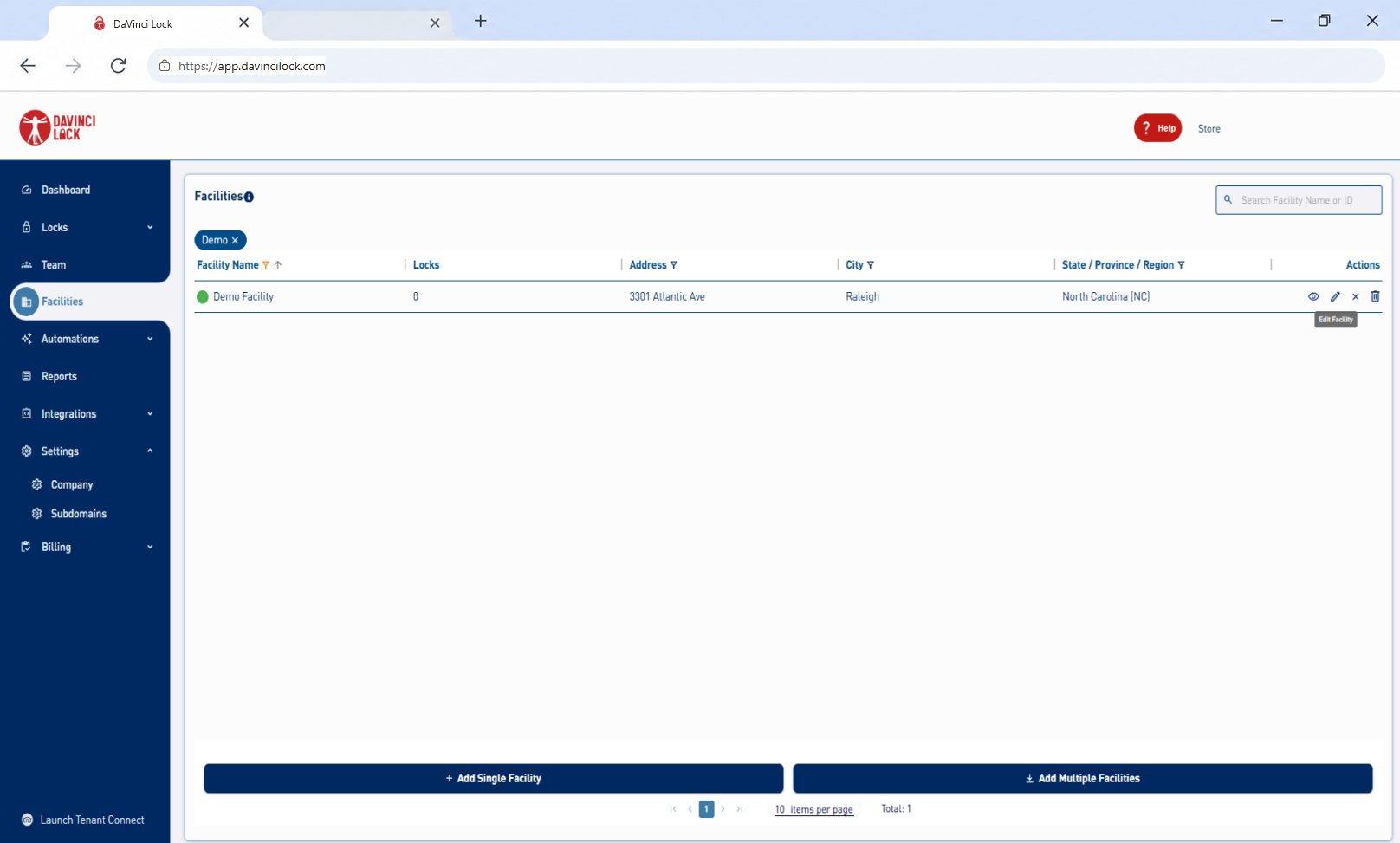
10. Click “Facilities” and add a facility or locate the facility to be updated. Select the Edit Facility pencil icon in the Actions column. Do not select the facility name.
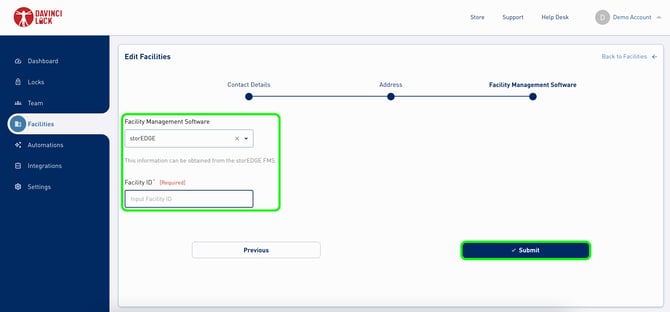
11. Select "storEDGE" as the facility management software and add the “Facility ID”.
12. Click “Submit” to save.
-
- If successful, you will receive a notification stating, “Facility successfully updated.”.
- If unsuccessful, you will receive a notification stating “Facility successfully updated. However, the entered storEDGE Facility ID could not be resolved”. If this happens, confirm the API settings in Storable Edge and confirm the right permissions are set.
Congratulations! DaVinci Lock® is now connected to Storable Edge.
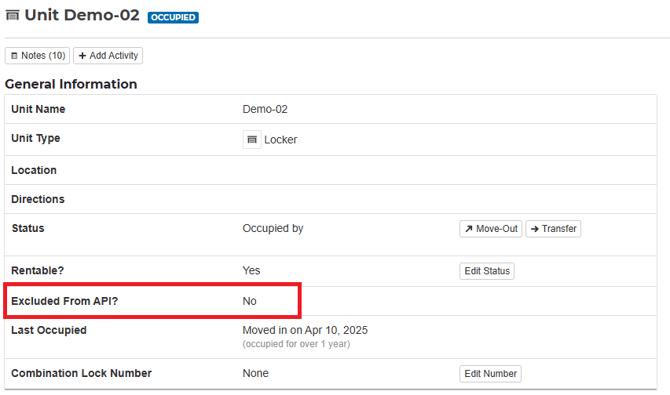
Ensure Excluded From API? says No or is unchecked for each unit.