.png?width=200&height=105&name=Newsletter%20Images%20(27).png)
To edit or delete a facility:
1. Sign in to your DaVinci Lock® account.
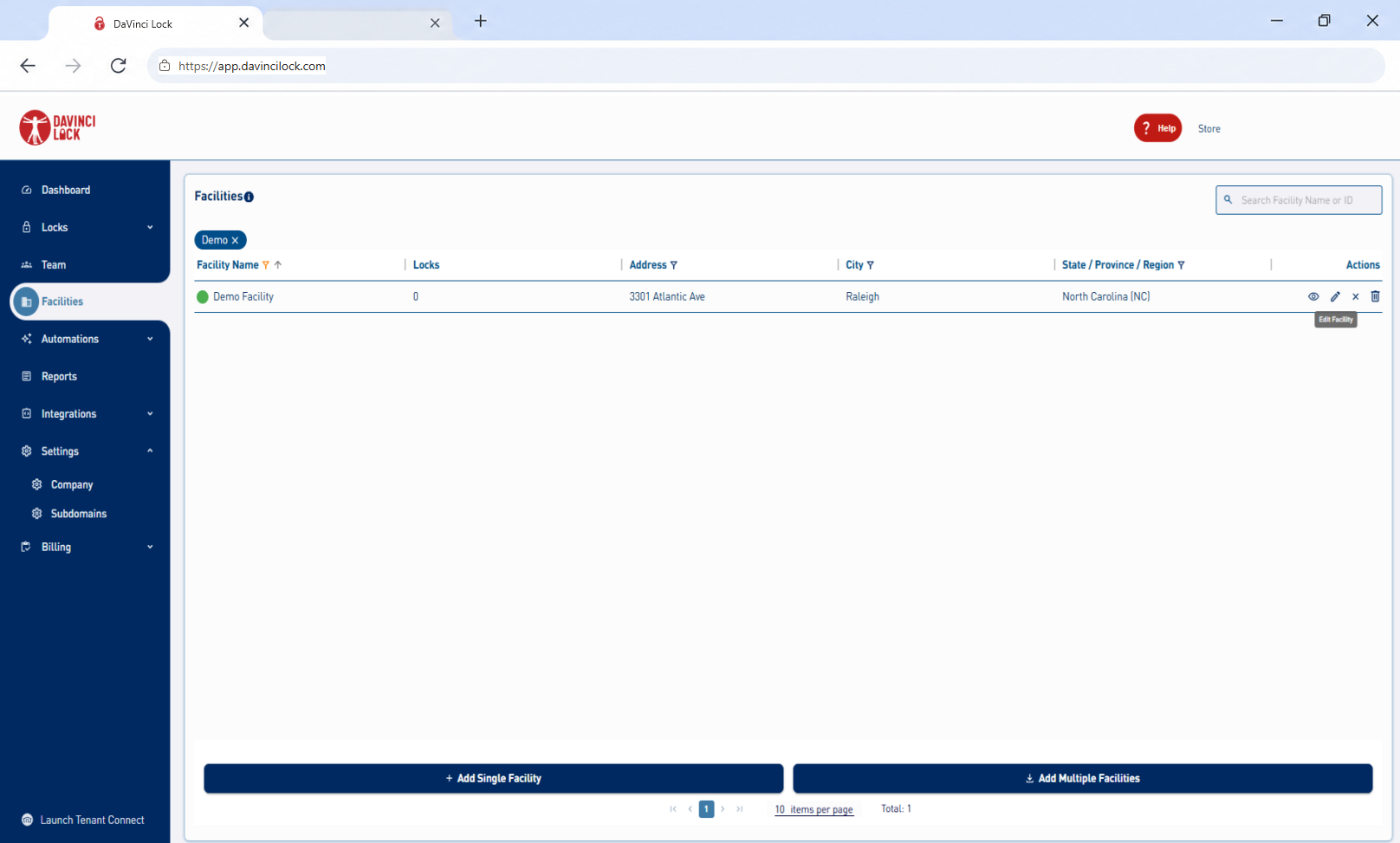
2. Select the Facilities tab.
3. Select the Pencil icon on the far-right side of the facility row you wish to edit.
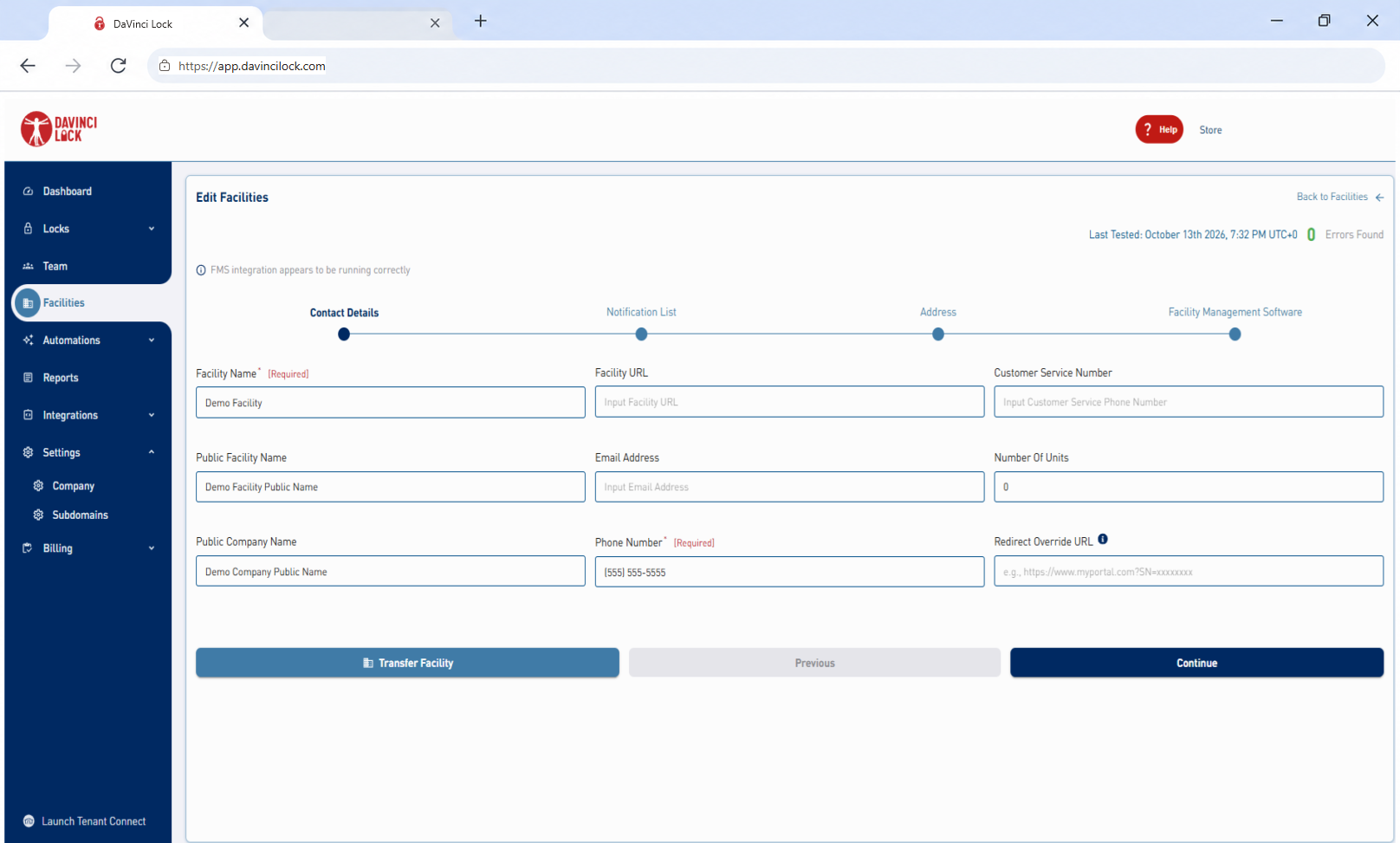
4. Update the applicable fields:
-
- Facility Name: The name displayed internally in the DaVinci Lock portal. Tenants do not see this name.
- Public Facility Name: The customer-facing facility name visible to tenants.
- Public Company Name: The customer-facing company name visible to tenants.
The Public Company Name and Public Facility Name are used when company and facility names are added to tenant messages and are used for Tenant Connect. See Customize Notifications for instructions.
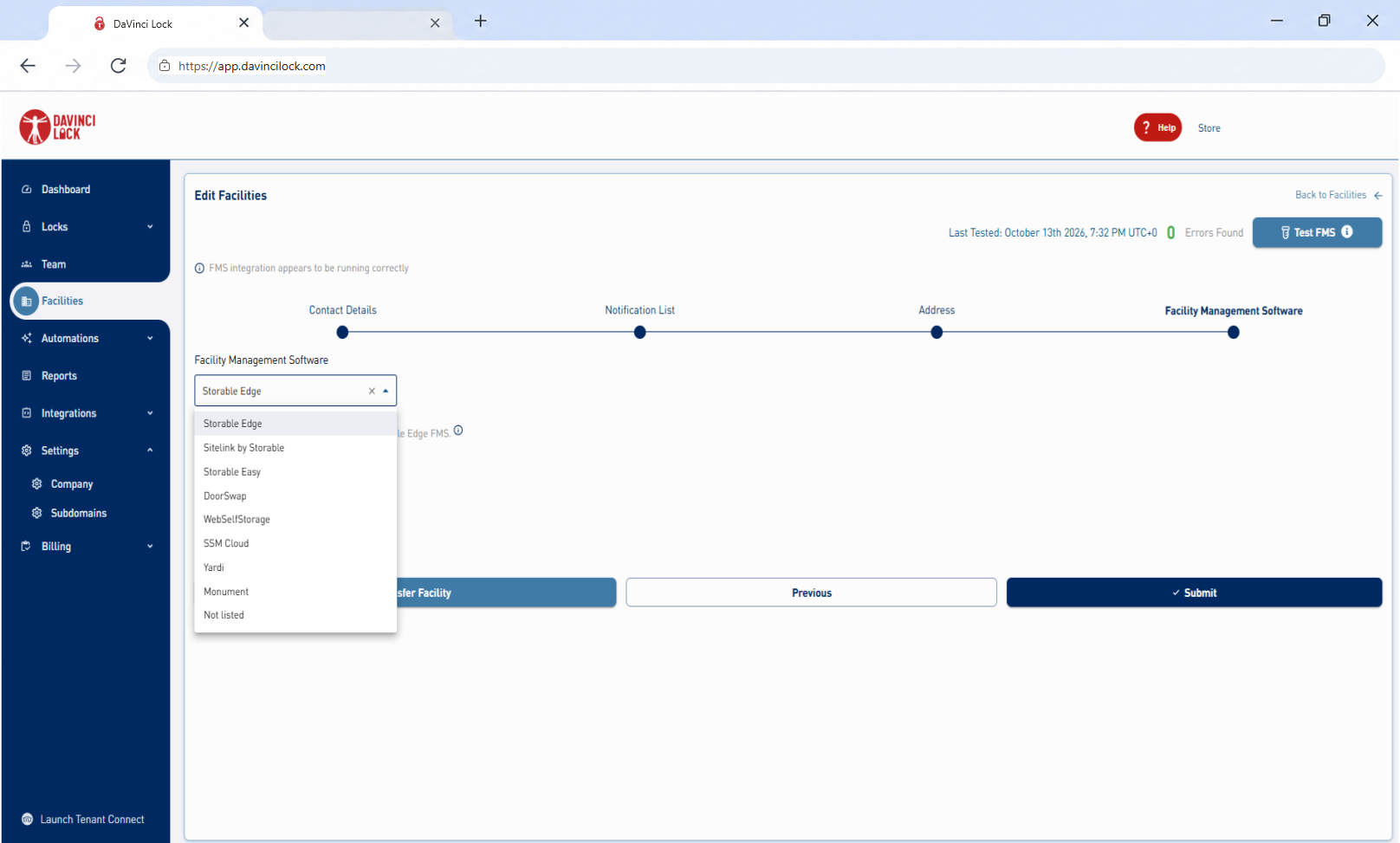
Update the Facility Management Software
- Open the Facility Management Software (FMS) dropdown.
- Update the FMS provider, API credentials, or other integration information as needed.
- Select Submit to save the settings.
For more information on setting up the integration see the Facility Management Software (FMS) Integration Partners article.
Delete a Facility
Select the Trash icon on the far-right side of the facility row. A facility cannot be deleted while locks are stored in it.
