.png?width=200&height=105&name=Newsletter%20Images%20(27).png)
Gate Access Hour Templates
The Access Hours page allows operators to create and manage access hour templates that can be assigned at either the facility or GOAT level.
How Access Hour Templates Work
Create multiple templates to support different access schedules, such as:
- Office Hours
- Storage Gate Access
- RV Gate Access
- 24-Hour Access
Template assignment follows these rules:
- A facility template applies to all GOATs at that facility by default.
- A GOAT template overrides the facility template for that specific GOAT.
- Multiple templates can be created and assigned as needed.
Default Template
The Default Template is automatically used when no other template has been assigned.
Operators can:
- Edit the template name
- Update the access schedule
Operators cannot:
- Change which template is designated as the default
Access Hours Overview
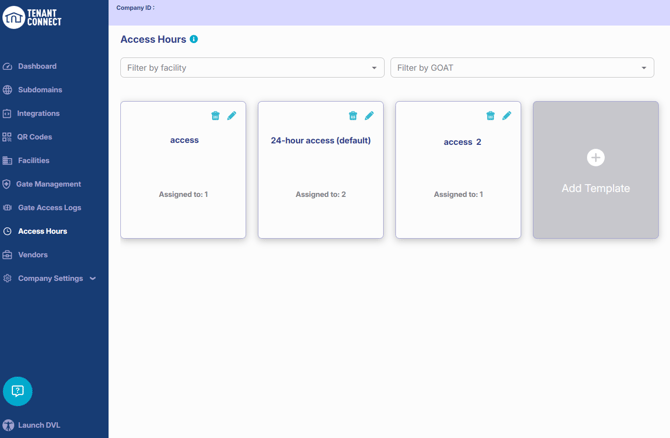
The Access Hours page displays all existing templates. For each template, operators can:
- View the template name
- Select the pencil icon to edit or update the template settings
Create an Access Hour Template
To create a new template: Tenant Connect → Access Hours
- Select Add Template.
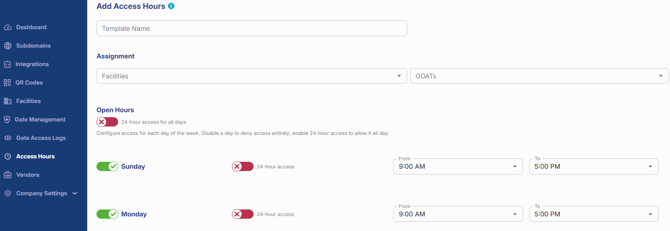
- Enter a template name.
- Configure the access schedule.
- Assign the template to facilities or GOATs.
- Save the template.
Access Hour Settings
Each template can be configured with settings:
- Template Name — Identifies the template.
- Days of the Week — Select the days access is allowed.
- Start Time — Specify when access begins.
- End Time — Specify when access ends.
- 24-Hour Access — Allow access for the entire day.
- Assigned Facilities — Apply the template to one or more facilities.
- Assigned GOATs — Apply the template directly to specific GOAT controllers.
Before saving, verify that the selected schedule matches the facility's access policy.
GOAT Controller Behavior
Access hour templates apply to the GOAT controller, not individual keypads. For example:
- A storage gate and an RV gate connected to different GOAT controllers can each have different access hour templates.
- Multiple keypads connected to the same GOAT controller will share the same access hours.
The available configuration depends on how the facility's keypads and GOAT controllers are installed.
User-Specific Access Hours
Access hour templates cannot be assigned to individual users. Instead:
- Assign templates to facilities to control access across the entire location.
- Assign templates to GOAT controllers to control access for specific entrances or buildings.
For example, to limit access to an office building during business hours, assign an office-hours template to the GOAT controller that manages that entrance.