.png?width=200&height=105&name=Newsletter%20Images%20(27).png)
The Gate Access Logs page provides historical data on tenant gate access attempts. Operators can use this report to review which tenants attempted access, were granted access, when access was attempted or occurred, and the gate entry point.
Gate Access Logs Overview
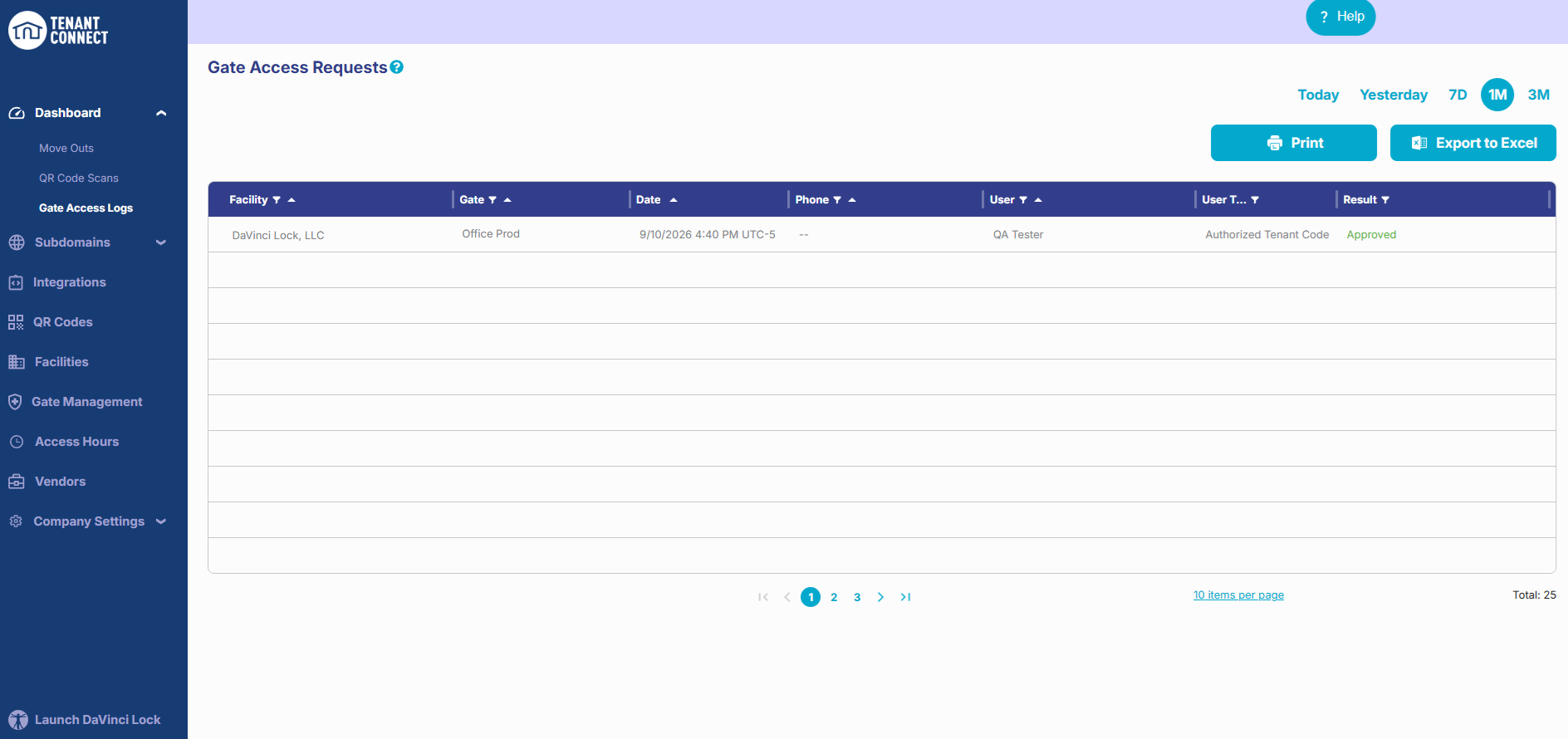
Filter and Sort Logs
Use the available filters and sorting options to quickly locate the access events.
- Filter by facility to view access activity for a specific location.
- Sort by date to review recent or historical access attempts.
- Troubleshoot access issues by identifying failed or successful tenant access attempts.
- Export logs for offline review, reporting, or recordkeeping.
- Audit facility activity by reviewing access events over a selected time period.
View Log Details
Select any log entry to view additional information about that access attempt.
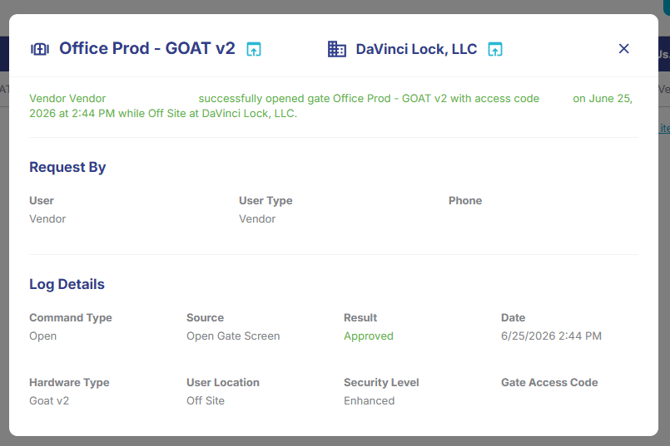
Log details include:
- Facility
- Gate
- User
- User type (Authorized Tenant, Authorized Tenant Code, Vendor, Operator, Call Center Agent, Installer, API User, Unknown)
- Phone number entered (when available based on company security level settings)
- Source
- Result
- Date and time
- Security level
- Gate access code entered (when available based on company security level settings)
Use these details to troubleshoot why access was granted, denied, or recorded as unknown.
User Types
-
Authorized Tenant: User has accessed logged in with their on phone number listed in the FMS.
- Authorized Tenant Code: User has attempted access with a tenant gate code.
-
Vendor: User as listed as a Vendor. See Vendor and Employee Setup
-
Operator: Owner or Admin user of the operator portal
- API User: Accessed through DaVinci Lock public APIs.
-
Unknown: This can occur when Tenant Connect cannot identify the person requesting access. For example:
- The customer entered a valid gate code without completing phone verification.
- The system could not associate the access attempt with a verified user.
For more information, see Lock Access Options.
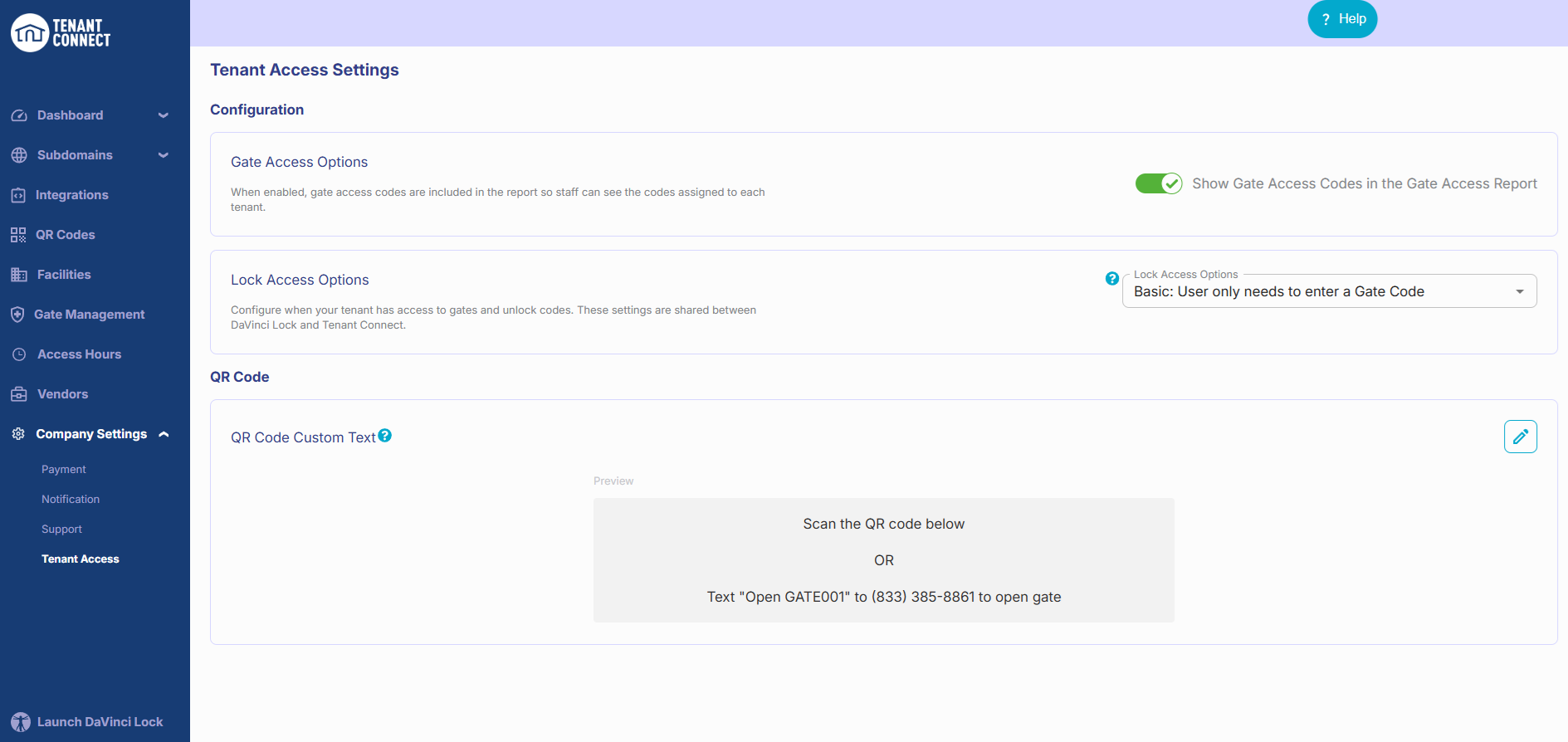
Show or Hide Customer-Entered Codes
Owners or Admins can elect whether customer-entered gate codes are displayed in Gate Access Logs. To update this setting: Company Settings → Tenant Access. Use the Show Entered Gate Codes setting to:
- Show customer-entered gate codes for troubleshooting.
- Hide customer-entered gate codes to limit visibility.
Time Zone Note
Gate Access Logs display times based on the time zone of the person viewing the logs, not the facility's local time.
When escalating an issue to support, include: the facility, gate, date, time, and relevant log details. Providing this information helps ensure the correct access event is reviewed.