.png?width=200&height=105&name=Newsletter%20Images%20(27).png)
When using Tenant Connect®, you may be asked to verify your phone number before accessing tenant features. Phone verification helps confirm your identity by sending a one-time verification code (OTP) by text message. Phone verification may be required depending on the facility's security settings.
-
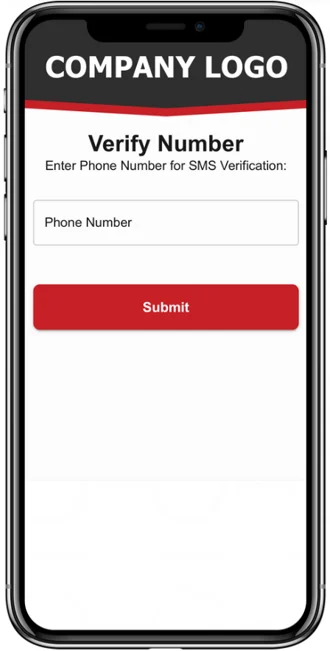
After scanning a Tenant Connect QR code or selecting a feature that requires verification, enter your phone number. Select Submit to continue.
-
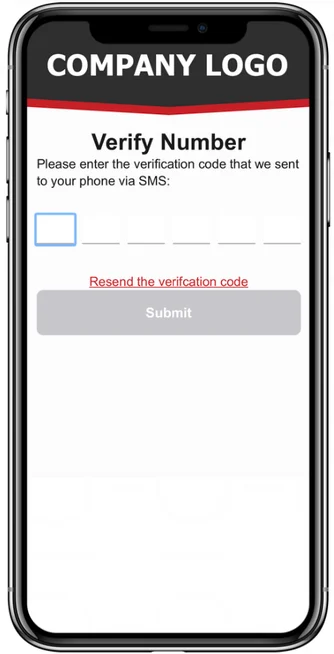
Enter the verification code sent via SMS to complete sign-in. Once the code is accepted, you are signed in and can continue using Tenant Connect.
-
After signing in, Tenant Connect uses your phone number, account information, and facility settings to determine which features are available, including:
- Gate or door access
- Unit access
- Payments
- Move-out submissions
- Contact the facility
- Other available tenant services
Didn't Receive a Verification Code?
If you don't receive a verification code:
- Confirm that you entered the correct phone number.
- Verify that your phone can receive text messages.
- Wait a few moments in case the message is delayed.
- Select Resend Code, if available, to request a new code.
Verification Code Not Working?
If the verification code is not accepted:
- Make sure you're entering the most recent verification code you received.
- Verification codes expire after a short period of time. If the code has expired, request a new one and try again.
Stay Signed In
After you successfully sign in, you'll remain signed in until you choose to log out. You won't be asked to verify your phone number again unless you sign out or your session expires.
Troubleshooting Phone Verification Errors
If a tenant experiences errors while verifying their phone number, have them clear their browser's cache and cookies, then reopen Tenant Connect® and attempt verification again.
If the issue continues, contact DaVinci Lock Support with details about the error and any screenshots provided by the tenant.