
Manage GOAT Zones
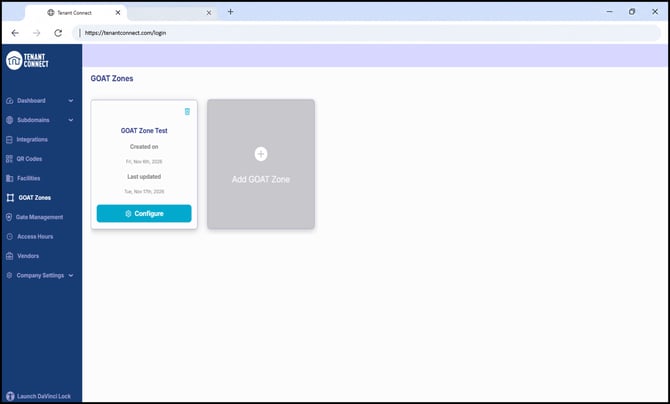
GOAT Zones allow facilities to manage tenant access based on location, access hours, or a combination of both. Zones can be used to restrict access to specific buildings, RV parking areas, or other designated areas within a facility.
Zones can be used to restrict access to specific buildings, RV parking areas, or other designated areas within a facility.
Tip: If no zones are configured, existing gate access behavior remains unchanged.
- Location-Based Access: Restrict tenants to specific gates or areas based on their assigned units.
- Time-Based Access: Configure different access schedules for individual zones.
- Combined Access: Restrict tenants to designated areas during their assigned access hours.
For example, a facility may provide standard gate access to all tenants while allowing tenants renting RV spaces to access a separate RV parking area with extended hours.
Note: To restrict tenant access based on assigned units, the facility must be integrated with its Facility Management Software (FMS) through both DaVinci Lock and Tenant Connect.
Create a GOAT Zone
- Sign in to your Tenant Connect account.
- Select GOAT Zones from the left navigation menu.
- Click Add GOAT Zone.
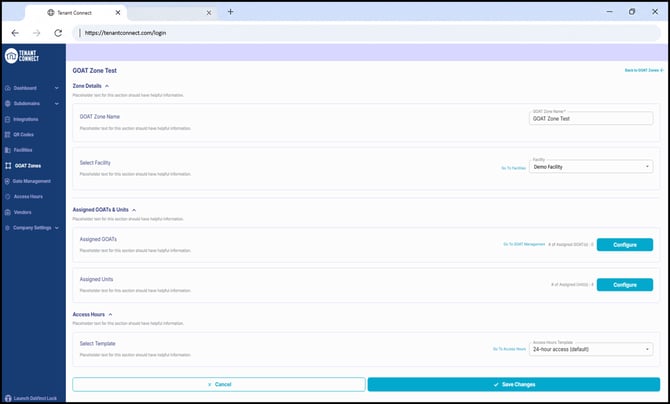
- Enter a GOAT Zone Name.
- Select the Facility where the zone will be configured.
Assign GOATs
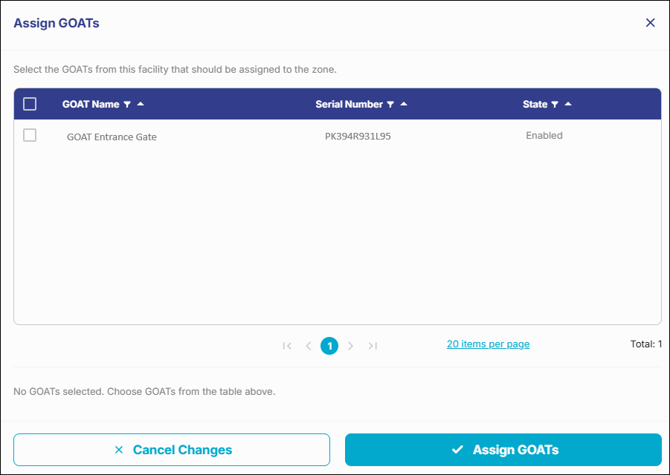
- Under Assigned GOATs, click Configure.
- Select the GOAT device(s) you want associated with the zone.
- Click Assign GOATs.
-
Scroll down and click Save Changes.
Assign Units
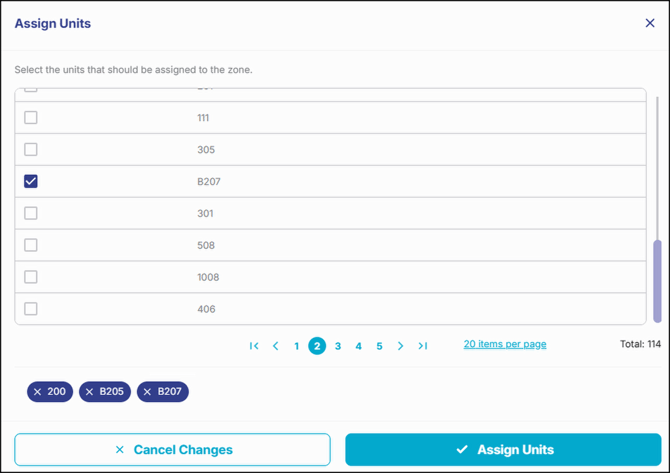
Assigning units is optional and allows you to restrict tenant access based on their assigned units.
- Under Assigned Units, click Configure.
- Select the units that should have access to the zone.
- Click Assign Units.
-
Scroll down and click Save Changes.
Note: Each unit can belong to only one GOAT Zone. If tenants need access to multiple areas, configure a zone containing the appropriate GOAT devices and assign their units to that zone. A warning will appear when saving if a tenant is assigned to multiple zones.
Configure Access Hours
Assigning an Access Hours Template is optional. Each GOAT Zone can use one template to control when tenants can access that area.
- Under Access Hours, locate Select Template.
- Choose the desired Access Hours Template from the dropdown.
- Click Save Changes to save your GOAT Zone.

Access Hours Templates can provide different schedules for individual days, including 24-hour access or restricted hours.
To create or modify additional schedules, navigate to Access Hours in Tenant Connect.
Edit or Delete a GOAT Zone
To modify an existing zone:
- Navigate to GOAT Zones in Tenant Connect.
- Locate the zone you want to update.
- Click Configure.
- Update the assigned GOATs, units, or access hours.
- Click Save Changes.
To remove a zone, select the Trash Icon on the corresponding zone and confirm the deletion.
Frequently Asked Questions
Do GOAT Zones affect vendor access?
No. GOAT Zones currently do not affect vendor access.
Can tenants access multiple areas?
Yes. Create a GOAT Zone containing the GOAT devices for the areas those tenants need to access, then assign their units to that zone.