.png?width=200&height=105&name=Newsletter%20Images%20(27).png)
The Vendors page allows operators to add and manage vendors or employees who need access to gates, doors, or other access points through Tenant Connect®.
Vendors Overview
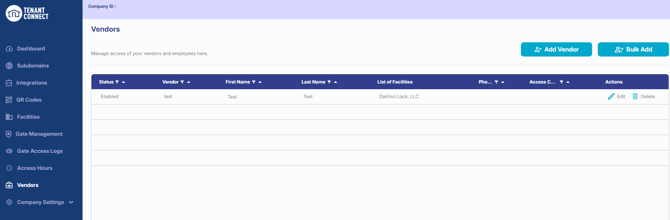
The Vendors page displays all vendors or employees that have been added to Tenant Connect. For each record, operators can view:
- Status
- Vendor or employee name
- Phone number
- Assigned facilities
- Access code
Operators can also:
- Select Add Vendor to create a new vendor or employee.
- Select Bulk Add to add multiple vendors or employees at once.
- Select Edit to update an existing vendor or employee.
- Select Delete to remove a vendor or employee.
Add a Vendor or Employee
To add a vendor or employee: Tenant Connect → Vendors
- Select Add Vendor or Bulk Add.
- Add the required information, including:
- Vendor Type — Identifies the type of vendor or employee.
- Name — Displays throughout Tenant Connect.
- Phone Number — Used when the vendor or employee signs in through the tenant-facing portal.
- Access Code — Identifies the vendor or employee in Gate Access Logs.
- Assigned Facilities — Determines which facilities the vendor or employee can access.
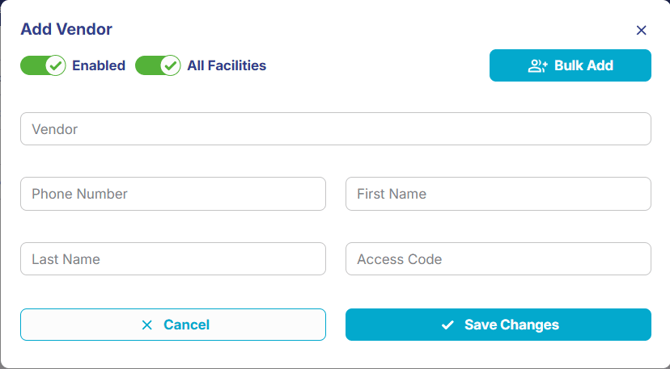
- Select Save Changes.
- The vendor or employee is added to the Vendors list and can access entry points through Tenant Connect.
24-Hour Access: Vendor and employee access is not restricted by Access Hour Templates. Once assigned to a facility, vendors and employees have 24-hour access to that facility, regardless of the facility's configured access hours.
For more information about what vendors and employees see, see Vendor or Employee Login.