.png?width=200&height=105&name=Newsletter%20Images%20(27).png)
Tenants can use Payments in Tenant Connect® to make a payment for their unit. To begin:
- From the Existing Customers screen, select Payments.
- Review the payment information.
- Select the payment amount.
- Select Continue.
-
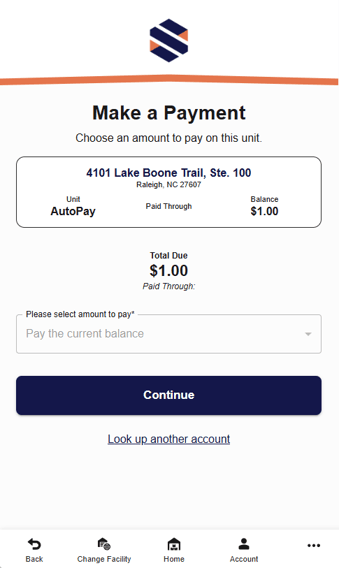
The payment screen displays:
- Facility address
- Unit number
- Current balance
- Total amount due
- Paid-through date (when available)
- After selecting a payment amount, choose Continue.
- If the tenant has a saved payment method, it will appear as a payment option. The tenant can:
- Select the saved card. Select Continue to complete the payment.
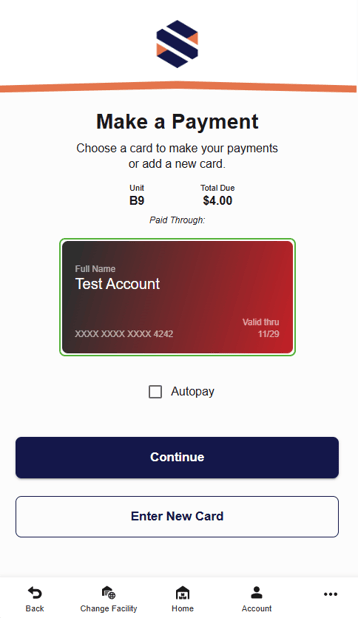
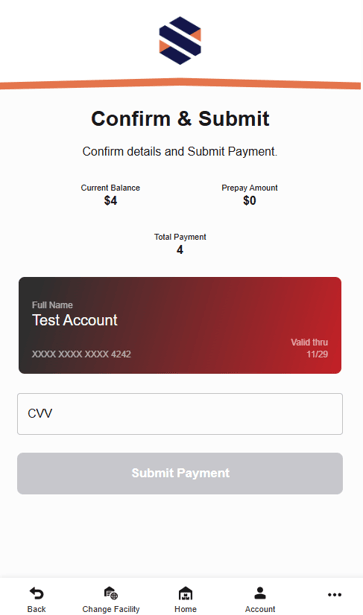
- Select the saved card. Select Continue to complete the payment.
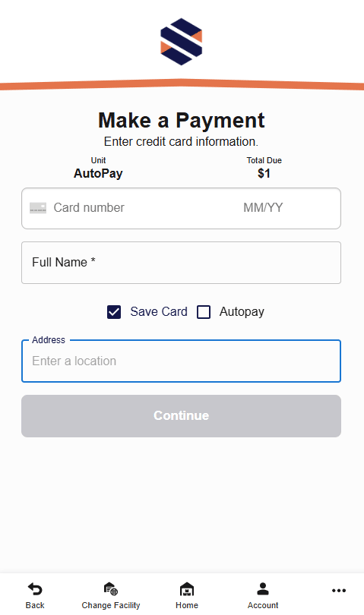
- If no saved payment method is available, or the tenant chooses to use a different payment method, Tenant Connect prompts for payment information.
-
Additional options include:
- Save Card — Stores the payment method for future use.
- Autopay — Enrolls the payment method in automatic payments, if enabled by the facility.
-
- If the tenant has a saved payment method, it will appear as a payment option. The tenant can:
- After entering the payment information, select Submit Payment.
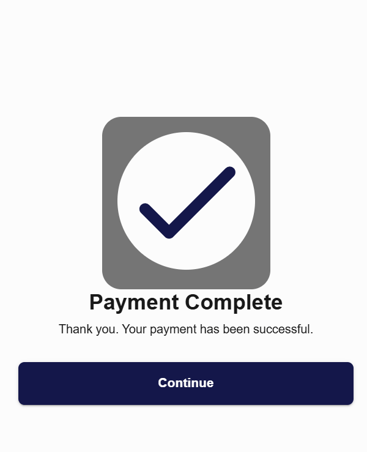
- If the payment is successful, Tenant Connect displays a confirmation screen. The tenant can select Continue to return to Tenant Connect.
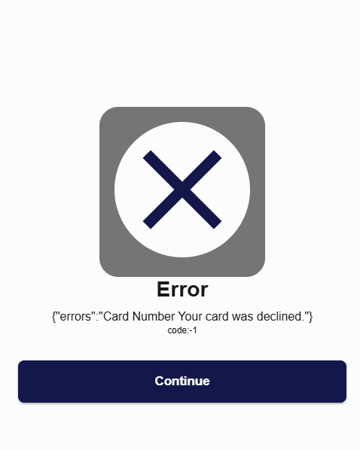
- If the payment cannot be completed, the tenant may see an error message. The tenant may need to confirm their card information, try another payment method, contact their bank to see if there is an issue on their end or contact the facility for help. If payment has been blocked, the tenant should contact the facility for more information.
- If the payment is successful, Tenant Connect displays a confirmation screen. The tenant can select Continue to return to Tenant Connect.
If enabled by the facility, the payment screen may also display the Autopay option. For more information, see Payment Settings.