.png?width=200&height=105&name=Newsletter%20Images%20(27).png)
View and Manage Facility Units
The Units View shows which units in DaVinci Lock are currently syncing with your facility management software (FMS). Operators can use this page to review unit information, troubleshoot sync discrepancies, and remove outdated unit records.
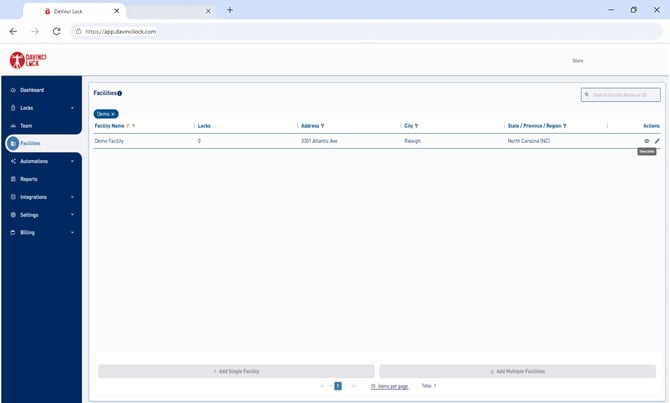
Open the Units View
- Sign in to your DaVinci Lock® account.
- Select Facilities.
- Locate the facility you want to review.
- Select the View Units eye icon on the far-right side of the facility row.
Review Unit Sync Statuses
The Units View displays unit numbers, sync statuses, and any locks assigned to each unit.
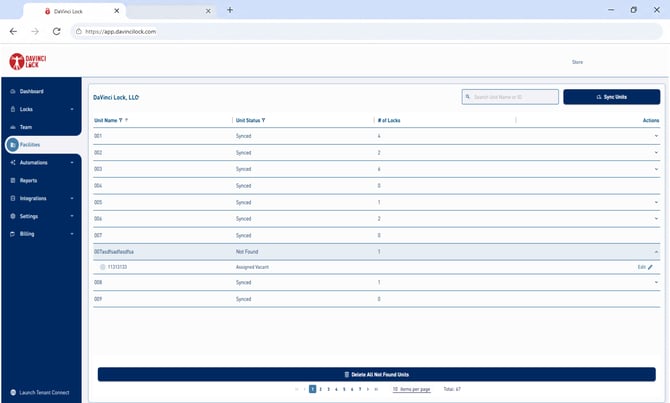
Each unit will have one of the following statuses:
- Synced: The unit was found during the most recent sync with the FMS.
- Not Found: The unit exists in DaVinci Lock but was not found in the FMS during the most recent sync.
A unit may display Not Found after:
- Changing facility management software
- Adding or removing units
- Combining or dividing existing units
- Changing unit numbers or the facility's unit mix
Use the Synced and Not Found filters to review units by status. You can also search for a specific unit number.
Important: A Not Found status does not necessarily indicate an issue or error. It can help identify outdated unit records or discrepancies between DaVinci Lock and your FMS.
Review Locks Assigned to Units
When a unit has an assigned lock, its serial code appears after selecting the unit name.
Select Edit to open the Lock Details page, where you can review or update the lock and its unit assignment.

Clean Up and Sync Units
If units are displaying Not Found, we recommend refreshing the unit list to help identify records that may no longer belong to the facility.
- Select Delete All Not Found Units to remove outdated unit records that do not have assigned locks.

2. Select Sync Units to retrieve the current unit list from your FMS.
3. Review any units that continue to display Not Found.
Important: Delete All Not Found Units will not delete units that have a DaVinci Lock assigned. This protects existing lock assignments and allows the cleanup process to be performed without accidentally removing those assignments.
This process helps clean up outdated unit information and makes it easier to identify units that may require further review.
Troubleshoot Units Still Showing Not Found
If a unit continues to display Not Found after completing the cleanup and sync, check whether a lock is assigned to that unit.
- Locate the unit displaying Not Found.
- Select the unit name to view its assigned lock, if applicable.
- Select Edit to open the Lock Details page.
- Verify whether the lock is assigned to the correct unit.
- If the lock is assigned to a unit that no longer belongs to the facility, remove or correct the unit assignment.
- Return to the Units View.
- Select Delete All Not Found Units again.
- Select Sync Units to refresh the unit list.
Once the incorrect lock assignment has been resolved, the outdated unit record can be removed during cleanup.
Note: Only remove or change a lock assignment after confirming that it is incorrect. A Not Found status alone does not mean the lock assignment should be removed.
For more information about updating lock assignments, see Assign or Edit a Lock.
View Units for Another Facility
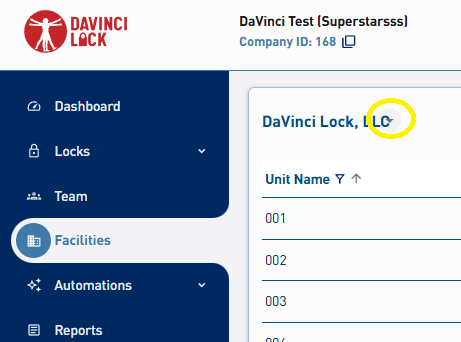
The facility currently being viewed appears at the top left of the page. Select the facility name to open the facility menu, then choose another facility to view its units.
Leave the Units View
To leave the Units View, select any navigation tab on the left side of the portal. For example, select Facilities to return to the Facilities page.