.png?width=200&height=105&name=Newsletter%20Images%20(27).png)
This article explains how to can create, view, download, and print QR codes from the Tenant Connect® operator portal for use at a facility. To learn what QR codes are and how they are used in Tenant Connect and DaVinci Lock, see How QR Codes Work in Tenant Connect® and DaVinci Lock®.
Before Creating a QR Code
Before creating a QR code, the following items must already be set up in Tenant Connect:
- Integration - Integration with the Facility Management Software (FMS) needs to be established.
- Subdomain - The branded Tenant Connect website connected to the operator’s company. This allows the QR code to send customers to the correct Tenant Connect experience.
- Facility
See Operator Facing Portal - Basic Setup Flow for the steps on setting up your Tenant Connect portals.
Creating a QR Code
To create a QR code in the Tenant Connect operator portal:
- Click "QR Codes".
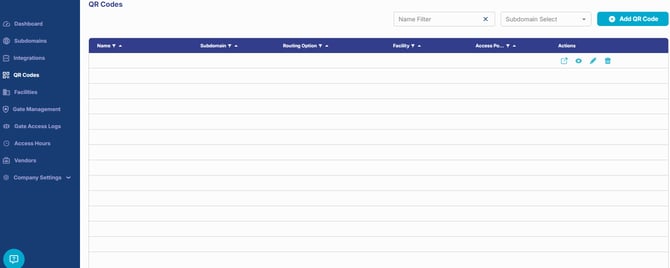
- Select Add QR Code.
- Complete the QR code details:
- Name: Helps operators identify the QR code later in the QR Codes list.
- Subdomain: The branded Tenant Connect website the QR code will use.
- Routing Option: Where the customer is directed when scanning the QR code. The Routing Option should consider where the QR code will be placed and the flow that should occur after scanning.
- Redirect URL: Populates when selecting Redirect to URL as routing option.
- Facility: Populates when selecting Facility or Access Point as routing option.
- Access Point: Populates when selecting Access Point as the routing option.
Routing options include:
- Subdomain Home Screen - Navigates to the main Tenant Connect home screen for the selected Subdomain (not facility-specific). Used when the QR code should open the tenant-facing portal.
- Redirect to URL - Navigates to a specified website URL. Used when the QR code should navigate to a custom destination.
- Redirect to Facility - Navigates to the main Tenant Connect home screen for a facility. Used when the QR code should navigate to Tenant Connect for a specific facility instead of a general company subdomain.
- Redirect to Access Point - Navigates the customer to an access point, such as a gate or other configured access location. Used when the QR code is located near an access point and should navigate a customer to the access flow.
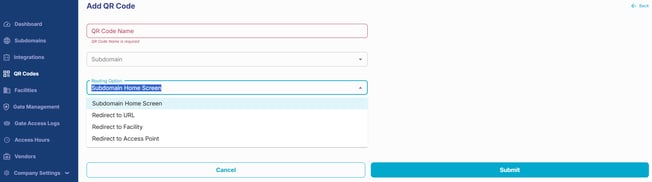
4. Click "Submit". The QR code will be visible in the QR Codes list.
Viewing, Downloading. and Printing a QR Code
To view a QR code in the Tenant Connect operator portal:
- Click "QR Codes'.
- Locate the QR code by name.
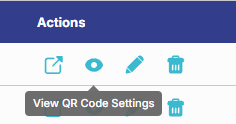
- Click "View QR Code Settings" button to view its details.
4. Details include the QR code name, subdomain, routing option, and QR code image.
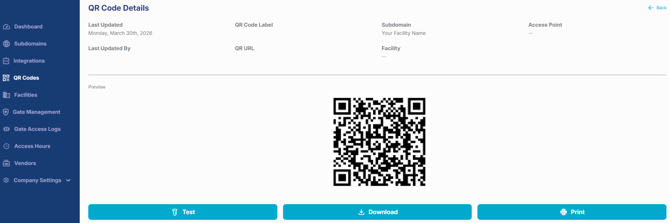
5. Click "Download".

QR codes can be added to facility signage (gate signs, door signs, printed materials), or other approved customer-facing materials, available here. Always scan the QR code before posting it at a facility to confirm it opens the intended Tenant Connect experience.
For best results, make sure the printed QR code is:
- Large enough to scan easily
- Not blurry or stretched
- Placed where customers can safely scan it
QR Flow Variability
Scanning a QR code considers account details such as:
- Whether the tenant is already signed in
- Phone number being used & mapping to a tenant account
- Account status - current or delinquent
- The facility’s Tenant Connect settings
- QR code routing option
Because of this, operators may experience different flows for the same QR code.
For the most accurate results, operators should avoid testing with phone numbers connected to tenant accounts. Repeatedly using the same phone number for testing may result in failed tests or unexpected results.