.png?width=200&height=105&name=Newsletter%20Images%20(27).png)
A Subdomain is the branded Tenant Connect® website for your organization.
Subdomains allow operators to customize the tenant experience by configuring company branding, contact information, rental links, facilities, and QR codes.
Open Subdomains
To manage subdomains: Tenant Connect → Subdomains
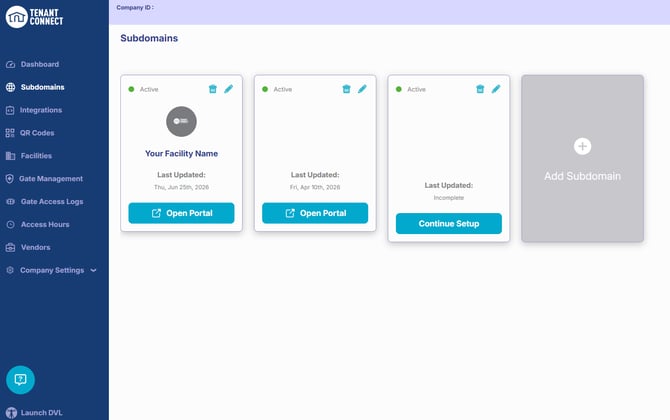
Subdomains Overview
The Subdomains page displays all subdomains created for your organization. For each subdomain, operators can view:
- Subdomain name
- Created date
- Last updated
- Open button
- Edit (Pencil) button
Use Open to view subdomain details or Edit to update the subdomain settings.
Add a Subdomain
To create a new subdomain:
- Select Add Subdomain.
- Enter the required subdomain information.
- Save the new subdomain.
After the subdomain is created, operators can configure the following sections:
- Profile
- Brand
- Facilities
- QR Codes
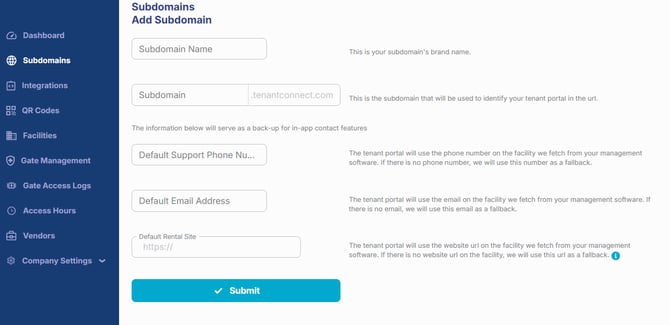
You can only customize the first part of your subdomain. All subdomains must end in .tenantconnect.com (for example, yourcompany.tenantconnect.com).
Profile
The Profile section contains the primary information associated with the subdomain. Settings include:
- Subdomain name
- Default rental website
- Default support phone number
- Default email address
This information is used throughout the tenant-facing Tenant Connect experience, including features such as Rent a Space and Contact Us.
Customize Branding
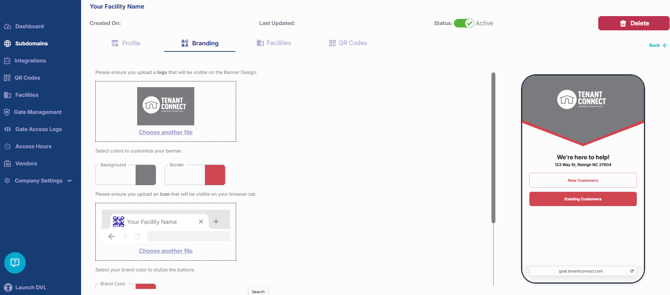
The Brand section controls the appearance of the tenant-facing Tenant Connect experience. Operators can configure:
- Company logo
- Brand colors
- Header color
- Button color
- Home page banner
Facilities
The Facilities section displays the facilities currently assigned to the subdomain. Use this page to:
- Review assigned facilities.
- Confirm which facilities are available through the subdomain.
Note: Facilities are assigned from the Facilities page, not from the subdomain.
For more information, see Facilities.
QR Codes
The QR Codes section displays all QR codes associated with the selected subdomain. From this page, operators can:
- View assigned QR codes.
- Open a QR code to review or edit its settings.
- Add a new QR code to the subdomain.
For more information, see Creating and Downloading QR Codes.