.png?width=200&height=105&name=Newsletter%20Images%20(27).png)
Redirect Lock QR Codes
A Redirect Override URL is used to send tenants to a specified website when they scan the QR code on a DaVinci Lock. For more information about standard QR-code behavior, see How QR Codes Work.
Before You Begin
- You must be an Owner or Admin.
- The company and facility must exist in DaVinci Lock.
- The locks must be activated to the facility.
- Have the complete destination URL ready, including https://.
Note: An integration is not required.
Company and Facility Redirects
The Redirect Override URL, located under Settings > Company, serves as the default redirect URL for all QR codes associated with your company.
If a Redirect Override URL is not configured, the QR code will direct the tenant based on the following order of priority:
- Facility URL, if available.
- Company URL, if no Facility URL is configured.
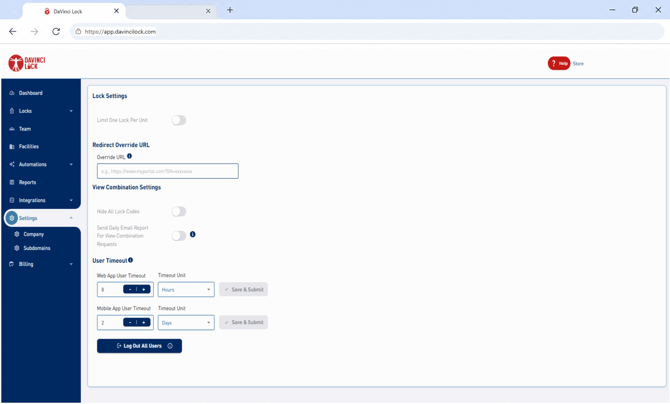
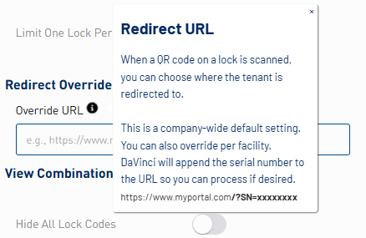
Note: The facility URL applies only to locks activated to that facility and takes priority over the company URL.
Set a Facility Redirect
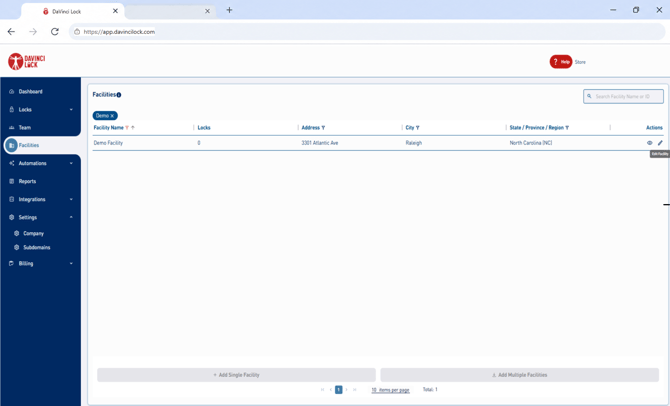
- Sign in to your DaVinci Lock account.
- Select Facilities.
- Click Edit Facility on the facility you want to update.
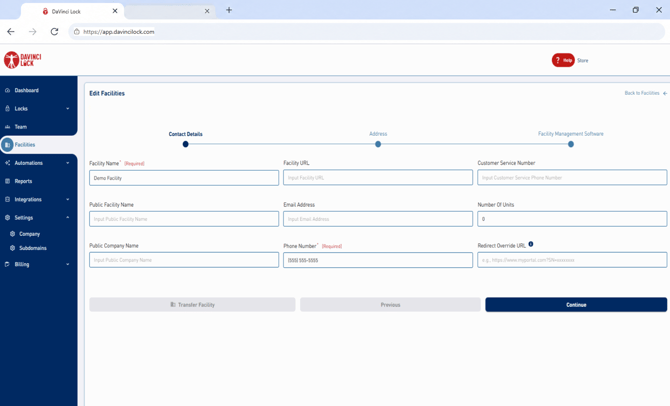
6. Review the remaining facility information and save your changes.
How the Redirect Works
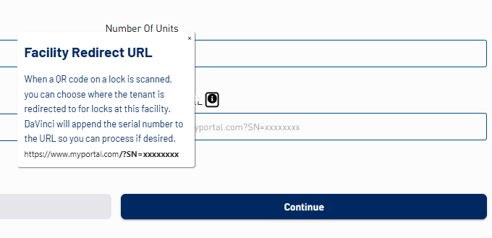
When a tenant scans the QR code on a lock activated to the facility, they are sent to the facility’s Redirect Override URL.
The facility URL takes priority over:
- The company-wide Redirect Override URL
- Tenant-Facing Experience
- Text-to-Release
DaVinci also adds the scanned lock’s serial number to the URL so the receiving website can process it if needed.
Example:
https://www.myportal.com/?SN=xxxxxxxx
Test the Redirect
After saving your changes, scan the QR code on a lock activated to the facility. Confirm that the correct destination opens.
If it does not:
- Confirm that the URL includes https://.
- Verify that the URL was saved on the correct facility.
- Confirm that the lock is activated to that facility.