.png?width=200&height=105&name=Newsletter%20Images%20(27).png)
The Vendor or Employee? option allows vendors and employees to request gate access through Tenant Connect®. Vendor and employee access must first be configured in the Tenant Connect operator portal.
For more information, see Vendor and Employee Access.
Access the Login Page
From the facility's Tenant Connect home screen, select Vendor or Employee?.
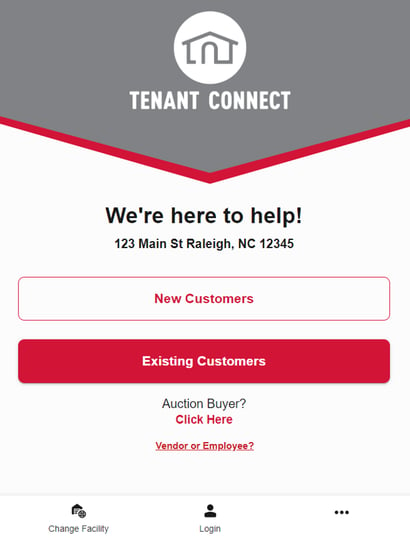
Log In and Verify Your Phone Number
After selecting Vendor or Employee?, vendors and employees will be prompted to:
- Log in
- Verify their phone number — Phone verification helps confirm the user's identity before access is requested.
For more information, see Login and Phone Verification in Tenant Connect®.
Select a Facility
If access has been assigned to multiple facilities, the vendor or employee will be prompted to select the facility they want to access.
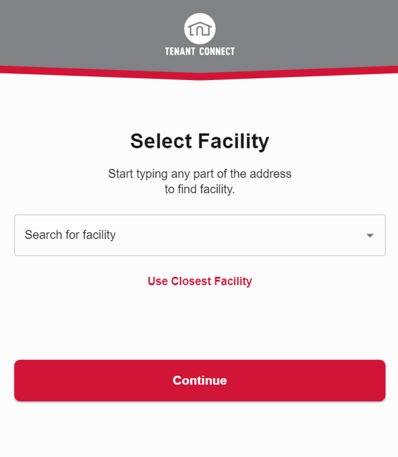
After selecting a facility:
- Tenant Connect loads the access points available for that facility.
- Facility settings determine whether access is currently available.
If the QR code is assigned to a specific access point, Tenant Connect will skip facility selection and take the vendor or employee directly to that access point.
Request Access
After logging in, the vendor or employee is prompted to choose the desired access point. If multiple access points are available, the Select an Access Point screen is displayed.
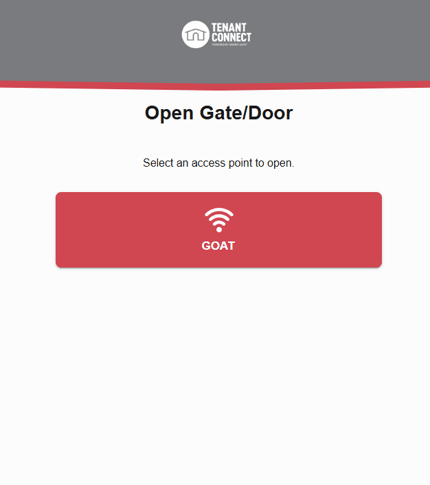
No Access Points Available
If no access points are available for the selected facility, Tenant Connect displays a message indicating that no gates or doors are available.
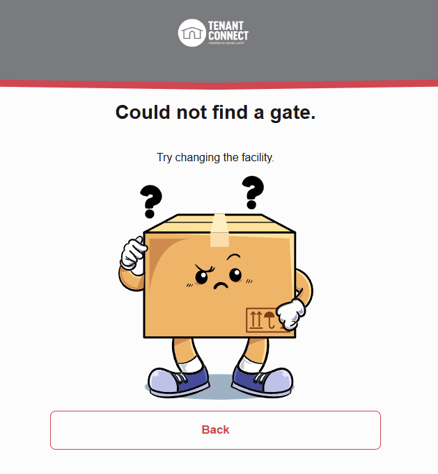
The vendor or employee can:
- Select Back to return to the facility list.
- Choose a different facility, if available.