.png?width=200&height=105&name=Newsletter%20Images%20(27).png)
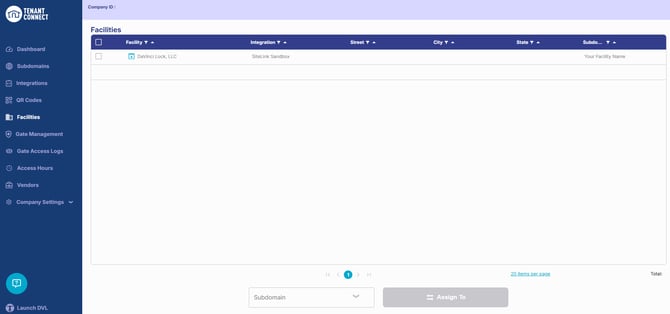
The Facilities page displays facilities connected to Tenant Connect® and integrated with your Facility Management Software (FMS).
With facilities available in Tenant Connect, operators can assign them to a Subdomain so tenants can access the correct tenant-facing experience.
Open Facilities
To view your facilities: Tenant Connect → Facilities
Facilities Overview
The Facilities page displays information for each connected facility, including:
- Facility name
- Facility Management Software (FMS)
- Facility address
- Open button
Use this page to review connected facilities, assign them to a subdomain, or open a facility to view additional details.
Assign Facilities to a Subdomain
Facilities must be assigned to a subdomain before tenants can access them through Tenant Connect. To assign one or more facilities:
- Select the checkbox next to each facility.
- Choose the destination Subdomain.
- Select Assign To.
Once assigned, tenants can access those facilities through the selected Tenant Connect subdomain.
For more information, see Subdomains.
Facility Details
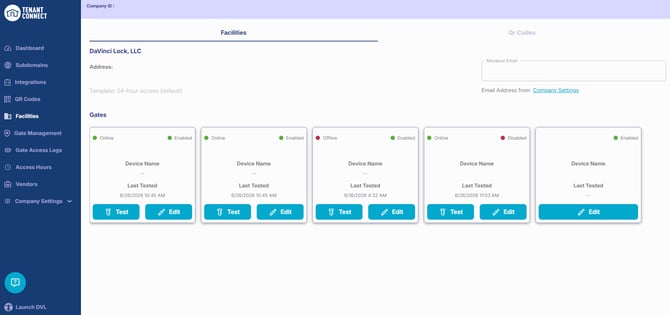
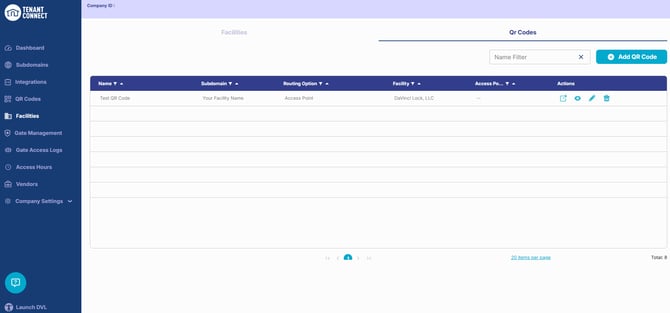
Select Open next to a facility to view its details. The facility details page provides access to the gates and QR codes associated with that facility.
View Gates
The Gates section displays all gates and access points associated with the selected facility. From this page, operators can:
- View connected gates.
- Open a gate to review its details.
- Test gate controls.
- Edit gate settings.
For more information, see Gate Management.
View QR Codes
The QR Codes section displays all QR codes associated with the selected facility. From this page, operators can:
- View assigned QR codes.
- Open a QR code to review its settings.
- Edit QR code configuration, when applicable.
For more information, see Creating and Downloading QR Codes.